User Profiles Support!
More actions
User Profiles Support
Profiles pictures, banners, social links, and more!


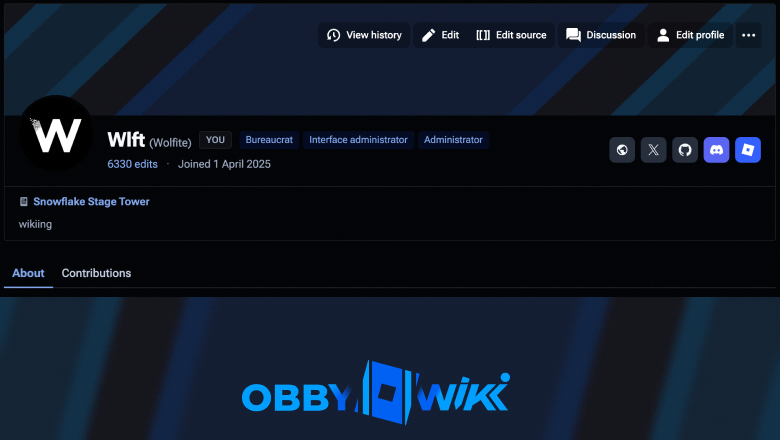
Starting today, every user now has a header on their profile that they can edit whenever. This comes with the ability to upload a PFP (profile picture) as well as your own banner too, along with the usual: a short tagline, a certain article, social links, etc. Verified connections, such as Roblox and Discord, are now shown there too. You can disable this either on your profile or on the settings page. Additionally, you can choose to hide your profile from everyone (but moderators) or everyone who isn't signed into an account (anonymous users).
If you set a profile picture, it'll also show up in the header. Only administrators can upload animated PFPs and banners.
A few things to note: attaching wiki profiles and a favorite article are experimental features and may be removed!
That's it, go try it out! Below here are quick guides to reference in case you need help.
Help
How to add a Profile Picture
To add a profile picture, from your profile page you can click the 'Edit profile' button and then scroll down until you see your current profile picture under 'Appearance'. Click your profile picture, and click 'Add image' or 'Replace image'.
You can upload any image under 2MB in size that's a JPEG, a PNG, or a WebP file.
How to add a banner
You can change your default blue banner on your profile page. To do that, click the 'Edit profile' button and scroll down until you see 'Appearance'. Next to your avatar, click any of the colored banner presets to change it instantly. You can also click the '+' button and upload your own custom image.
How to I get an animated/GIF profile picture?
Animated profile pictures and banners are only available for staff/administrators or a whitelist-only basis.
Privacy
You can choose to either hide your entire profile or just hide account connections from it. All privacy settings is available on your preferences page (Special:Preferences) and can be modified any time.
Available socials
On top of the Discord and Roblox verified connections, you can add your:
- X/Twitter username
- GitHub username
For bugs or improvements/suggestions, contact me here!